
How to Choose Healthy Chairs for Your Office?

Choosing Healthy Chairs for an office is not about finding the softest seat or the most impressive product label. It means matching the chair to the person, the desk, and the workday. Industrial designer Niels Diffrient is often associated with the principle, “The best posture is the next posture.” The idea is useful: a chair should support movement, not lock someone into one position.

Look closely at the details. Can the seat height place both feet flat on the floor? Does the seat depth leave a small gap behind the knees? Can the backrest support the lower back while allowing a comfortable recline? Try the controls, too. A lever that is hard to reach may stay unused. Small details matter.

Fit varies. A chair that feels supportive in a showroom may feel different after a long meeting. That can be frustrating. Consider the user’s height, build, tasks, and desk setup before choosing. If possible, test the chair for more than a few minutes, and check the return policy. This guide will compare key features, explain practical fit checks, and flag claims that deserve a closer look. No chair can replace regular movement or suit every body. A careful choice can still make daily sitting more comfortable.
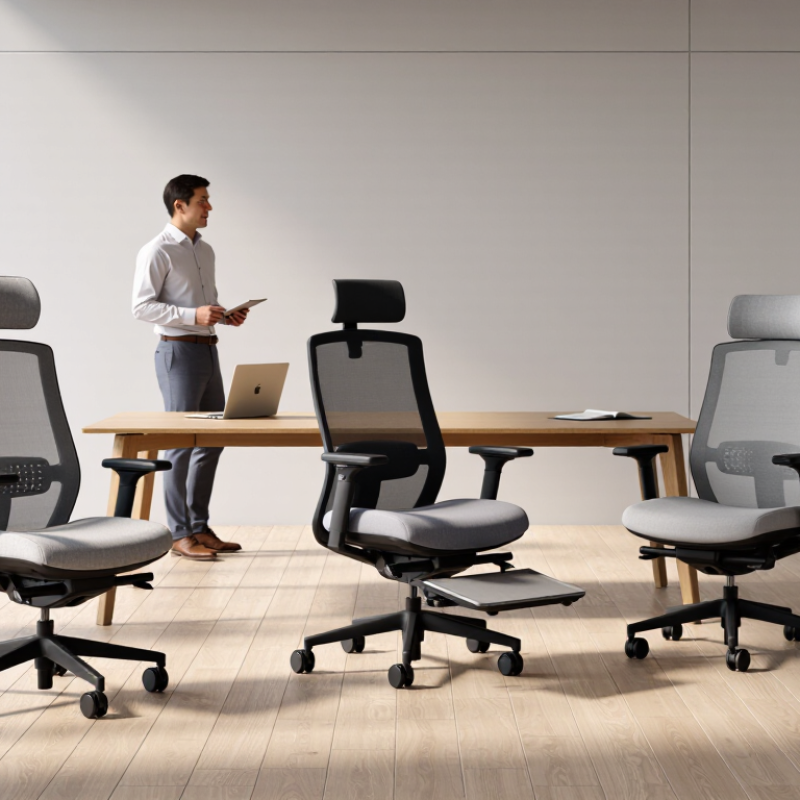
How to Choose Healthy Chairs for Your Office?

Identify Your Body’s Needs and Daily Work Habits

A healthy office chair should fit your body, not an imagined “average” user. Notice where pressure builds during a normal workday: the backs of your thighs, your lower back, or your shoulders. OSHA’s Computer Workstations eTool recommends adjustable seating that supports the back and lets your feet rest flat. Check this at your actual desk, with your usual shoes on. Small details matter. A chair can fit on paper and still feel wrong after lunch.

Your daily habits matter as much as your measurements. If you switch between typing, video calls, and leaning toward a second screen, test whether the chair lets you change posture without losing support. Try sitting with elbows near desk height and shoulders relaxed; then stand and sit again. Does the seat edge press into your legs? Can the backrest support you while you read? Padding alone is an incomplete test. WHO’s 2020 Guidelines on Physical Activity and Sedentary Behaviour recommend adults get 150–300 minutes of moderate-intensity activity each week. A chair cannot replace movement, so consider whether your routine allows short walks or standing breaks. Keep notes for a few days. My first impressions—and yours—may miss what becomes uncomfortable by late afternoon.

Check Seat, Backrest, and Lumbar Support

A healthy office chair should let your feet rest flat, with your knees near hip level. Check seat height while sitting naturally, not while stretching to reach the floor.

Seat depth matters too: leave a small gap, roughly two or three fingers wide, between the seat edge and the backs of your knees. A simple test is to sit fully back and notice whether the edge presses into your legs. Too tight?

The cushion should feel supportive rather than unusually soft; pressure that builds during a short test may become distracting over a workday.

The backrest should follow your back without forcing you into a rigid pose. Lumbar support should meet the natural inward curve of your lower back, not press sharply into one spot.

Adjust its height and depth, then sit for several minutes and check how your posture feels. Small changes help.

Comfort varies with body shape, clothing, and desk setup, so one chair setting will not suit everyone. It is easy to focus on lumbar support alone, but a well-positioned backrest cannot compensate for a seat that is too high or too deep.

Evaluate Adjustability for a Comfortable Fit

Adjustability matters because a chair must fit the person, not an average body. Eurofound’s 2017 Sixth European Working Conditions Survey overview reported that three in five workers experienced musculoskeletal disorders. That finding does not prove chairs cause pain, but it highlights why daily posture deserves attention. Set the seat height so your feet rest flat and your knees sit near hip level. A quick test: stand beside the chair; the seat should be close to knee height. OSHA’s Computer Workstations eTool also recommends supporting the lower back and keeping shoulders relaxed.

Check seat depth while sitting back against the backrest. There should be a small gap between the seat edge and the backs of your knees. Adjust the lumbar support until it meets your lower back, rather than pushing into it. Raise or lower armrests so your shoulders stay loose and elbows rest near your sides. Try each control while seated. Comfort is personal. One imperfect detail: a chair may feel fine for five minutes, then press behind your thighs after an hour. If you shift often, recheck the fit before blaming the chair—or your posture.

Compare Materials, Durability, and Maintenance

Compare upholstery, frame, and cleaning demands before judging a chair by its softness. Breathable woven fabric can reduce heat buildup, but it traps crumbs and dust. Wipeable coated surfaces clean quickly, yet may feel warm during long sitting. Choose low-emission finishes when documentation is available.

The U.S. EPA’s The Inside Story: A Guide to Indoor Air Quality reports that concentrations of some organic pollutants are often two to five times higher indoors than outdoors. This makes emissions worth checking, though it does not prove one chair material is automatically healthier.

For durability, ask for test results, not just a heavy-looking base. ANSI/BIFMA X5.1 tests general-purpose office chairs for repeated loading, stability, and related performance. Request the applicable test edition and results. A steel or reinforced frame may tolerate daily use, but joints, casters, and adjustment controls often reveal wear first.

No material is maintenance-free. Vacuum fabric regularly, blot spills promptly, and use an approved cleaner. Inspect hard surfaces for peeling around seams and arm pads. Keep a small log of loose screws, squeaks, or sinking height adjustments; it is unglamorous, but useful.

I would still test a chair through a full workday. Spec sheets cannot predict every body or room.

Test the Chair in Your Office Setup

Move the chair into your actual office setup before deciding whether it suits you. Wear your usual work shoes and sit at your normal desk, with your keyboard and monitor in place. A showroom posture can feel different from a real workday. Check that your feet rest flat, your knees have room, and the seat does not press sharply behind them. Sit for a while.

Adjust the seat height, backrest, and armrests one at a time. Your shoulders should stay relaxed while your hands reach the keyboard. If the armrests bump the desk, lower them or move the chair closer. Notice whether the lumbar support meets your lower back without forcing you into a rigid position. Small adjustments matter. I once mistook a firm seat for good support, then felt pressure after a longer session; comfort in the first minute is not enough.

Try leaning back, turning toward a nearby shelf, and standing up from the chair. The base should move smoothly on your floor, and the backrest should support you without catching your clothing. If possible, work in the chair for 30 to 60 minutes and reassess. A short test cannot predict every full-day response, so note any numbness, pressure, or repeated need to shift. That little discomfort is easy to dismiss. It may also be useful feedback.

How to Choose Healthy Chairs for Your Office? — Test the Chair in Your Office Setup

Fit Check How to Test It Comfortable Fit Indicator Sample Test Result Assessment
Seat height Sit back in the chair with your feet on the floor and hands resting near keyboard height. Feet are supported; knees are roughly level with or slightly lower than the hips. If needed, use a footrest. Seat adjusted to 46 cm; feet rest flat and knees are slightly lower than hips. Pass
Seat depth Sit with your back against the backrest and check the space behind your knees. A small gap—about two to three finger widths—remains between the seat edge and the back of the knees. About 5 cm of clearance remains; the seat edge does not press into the legs. Pass
Lumbar support Lean back naturally and adjust the backrest or lumbar support, if available. Support meets the lower back’s natural inward curve without creating a pressure point. Support aligns with the lower back and feels even during a 10-minute seated test. Pass
Backrest recline Test the backrest upright and reclined while keeping your feet supported. The backrest supports your torso and allows comfortable posture changes; it does not force one fixed position. Recline moves smoothly and can be held at several comfortable angles. Pass
Armrests Relax your shoulders and rest your forearms on the armrests while seated. Armrests support the forearms without lifting the shoulders or pushing the elbows outward. Armrests adjust to desk height; shoulders remain relaxed. Pass
Desk and keyboard fit Type at your usual desk height with the chair pulled close to the desk. Shoulders stay relaxed, elbows remain near the body, and wrists stay in a comfortable, neutral position. Keyboard is reachable, but the desk edge contacts the armrests before the chair can move close enough. Adjust setup
Movement and stability Roll the chair on your office floor, turn, and adjust the controls while seated. The chair moves and turns smoothly, stays stable, and its controls are easy to reach. Chair rolls smoothly on the floor mat; height and recline controls are reachable. Pass
Short comfort trial Work in your usual position for 20–30 minutes, then reassess pressure and support. No persistent pressure behind the knees, uncomfortable contact points, or need to hold an awkward posture. No pressure behind the knees; mild lower-back pressure develops after 20 minutes. Recheck support

Note: Sample results are illustrative. Chair fit varies by person and workstation; adjust the chair and desk together, and change position regularly.

Pin It on Pinterest

Share This